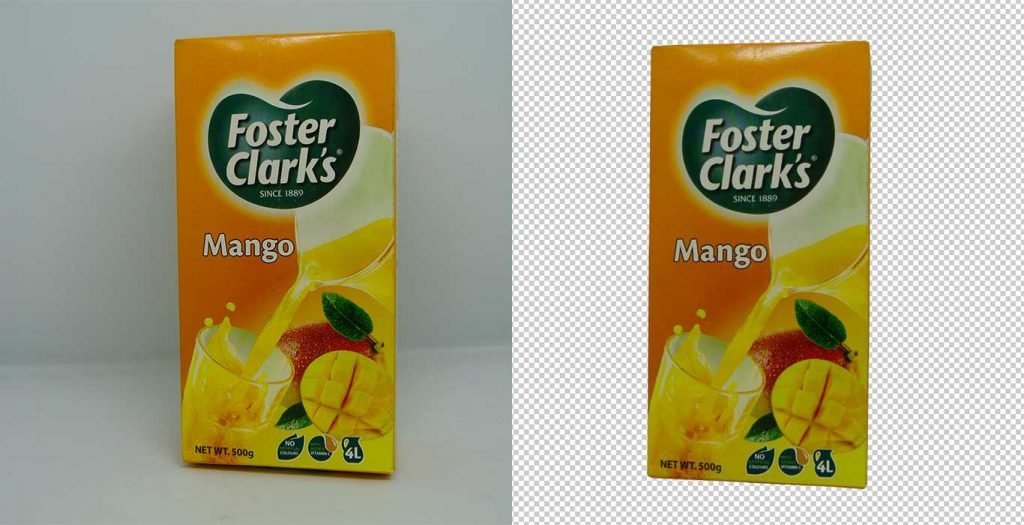
You can find plenty of software for cutting off the background of an image. In the list of all those software, Photoshop comes at the top. Photoshop offers you lots of tools by which you can cut off the background off an image, without ruining the image. We will discuss the tools below. Also want to Change the Background in Photoshop that is best for you. This is the best photo editing software for you. Here is another tips how to change background in Photoshop. Here is another helping hand for Background removal job.
Magic Wand Tool
Magic Wand Tool is a wonderful tool to remove the background from images, and it works very effectively in case of simple shaped images. This tool is named the Magic Wand Tool because it works like a bit of magic. It works great if the background is of one color, and the image has a strong outline.
- At first, open the image in Photoshop from which you want to remove the background.
- Select the Magic Wand Tool from the left toolbar of Photoshop. You can either click on the tool or also press “W/ Shift+W” simply from your keyboard.
- Click on the background you want to select. You can find dashed-line blinking around the selected layer.
- If you feel any kind of disturbance with the selection like blinking dashes, then there is a great option. You can try playing around with Tolerance. This thing will vary in every image.
- Then click on the Delete button, which will you the background-free image.
- Go to Select from the top bar, click on Modify, and then click on Feather. You can carry out the process pressing Shift+ F6 from your keypad. Now, press Delete. The process will remove the hardness from the image edge-line.
- Press Ctrl+Dto deselect the main subject. Then, create a new layer and place the new layer under the main layer dragging down from the top by going to Layer
- Then place the background color. Check if the outlines are okay or not. And that is it. You’re done.
Lasso Tool
This is another tool to cut off the background, but if your hands shake during selecting, it might become a challenge for you. Simply follow these steps:
- Open the picture in Photoshop.
- Make sure that the image background is not locked, keep it opened before starting to edit.
- Select the Lasso from the toolbar. By dragging, draw a line around the main subject.
- After drawing the line, click on the Path Palette from the Layer Palette and then create path clicking on the
- Then click on the selection tool from the toolbar.
- If there have been imperfections in the line, the selection tool will find points that will help you repair the line.
- Press Ctrl+Enter to transform the line into the selection. Head back to Layer Palette.
- To separate your subject with the background, select Select from the top, and click on You can also do it by pressing Ctrl+Shift+I on your keyboard. Then press Delete to remove the background.
- Take a new layer under the main layer and provide a background color. In this way, you will be able to leave out the unwanted background.
Color Range
This Background removing technique lets you select the background of the image quicker than any other one.
- Open your image in Photoshop, and duplicate it so that even if it gets ruined, you can work with another.
- Go to Select and from the dropdown click on the Color Range option. There you will get a window.
- Now you will get a color picker. If you want to select the background, click on the background, or else click on the main object.
- Then click the Color Picker with the plus (+) sign, and click on the places where the background is not thickly black. Make your background completely black.
- Press OK. You will get the image background selected with a long blinking dashed around your main object.
- If the main object gets selected even the slightest bit, then take the Quick Selection tool and click on the selected area so that it gets removed.
- Then, Press “Ctrl+Shift+I” or go to Select and click on the Inverse from the dropdown. The background will be selected as a result.
- Lastly, press the Delete button from the keyboard to remove the background and press “Ctrl+D” to deselect the product.
- Now you can give any background of your choice.
Layer Mask
Layer Mask is another easy Photoshop Background Removing tool. It is a photo editing with two layers.
- Open the image you want to remove the background and unlock it double clicking on the lock icon.
- Select the Pen Tool and create an outline of the subject.
- While creating the outline on the main subject, press “Ctrl+Enter” so that along blinking dash will be visible around the selected area.
- Next, select the layer that contains your subject and click on the Add a Mask from the bottom of the Layer palette. You will be amazed that a mask layer is added to your image layer and by the same time, the background of your image will be removed automatically.
- So you’ve got a transparent background. But if you want a color background, just take a new layer and provide any color to it by Paint Bucket Tool. Place the new layer just below your image layer so you can have your chosen background color.
Alpha Channel Masking
This process works best for hair masking. If you want to remove the background from hairy images, Alpha Channel Masking method can be helpful for you. Follow these simple steps:
- Open your image and duplicate the image layer.
- Go to the channel from the Layer Palette.
- Select the channel with most contrast in background and duplicate it.
- Make sure that only this channel is visible and the others are invisible to edit this channel.
- Press “Ctrl+I” to invert the layer.
- To remove any white glair, press “Ctrl+L” for level option and move the slide.
- Then the background will become completely black. Be careful that the small things like flying hair don’t get ruined. If the background is not fully black, then go to Manual work and use Burn Tool.
- Then, take a Pentool or Lasso tool and draw a line to select the body and face area. Ensure the foreground and the background color white. Press”Ctrl+Delete” to fill the selection with white color.
- Press “Ctrl+D” to deselect the area. Select the Dodge Tool and select the Highlight from the top bar.
- Zoom the images and drag the dodge tool to the area that is not highlighted to highlight the rest of the area that you could not select through Pen Tool.
- Then head to channel and go to RGB To select the four channels having visible the last one on which you have been working.
- Got to Selection option from the top bar and select the Load Selection option from the dropdown. A box will appear, select the Blue Copy from the option, and click on OK. As a result, you will get the image selected and blinking dashed will be visible.
- Come back to the Layer Palette To create a layer mask, select the first layer, and click on Add Mask option. You will observe a mask added with the first layer.
- Lastly, make invisible first layer by clicking on the eye and there you will get a background removed image.
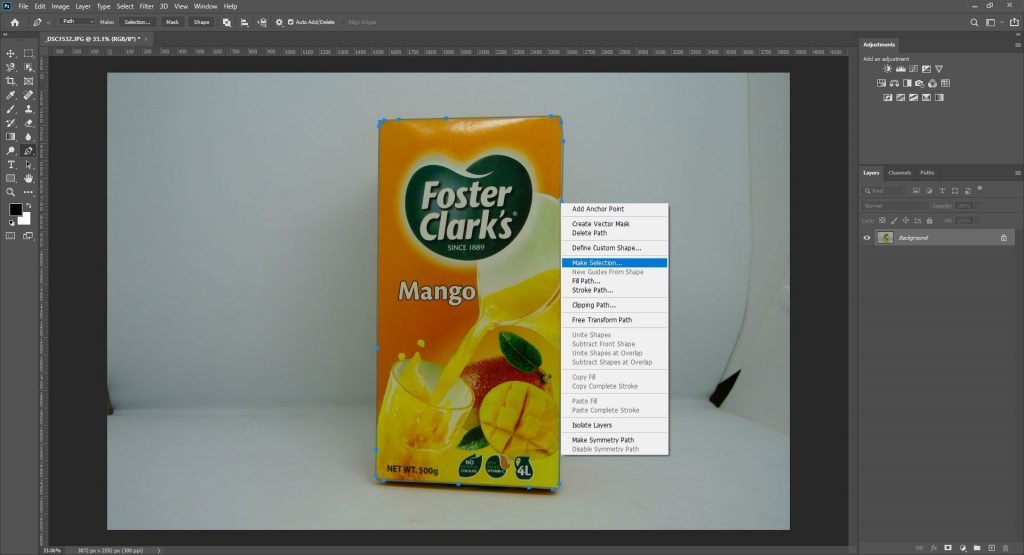
Pen Tool
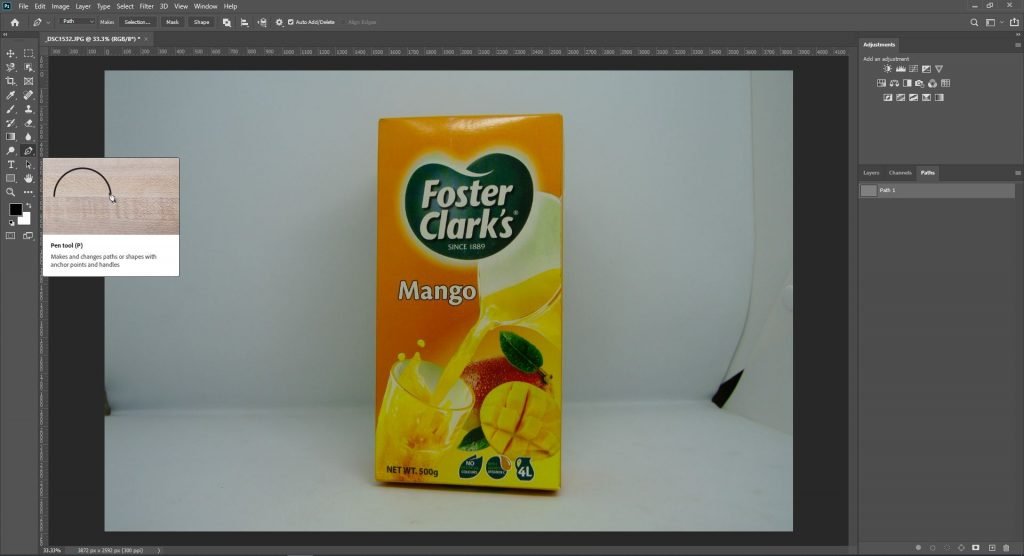
Pen Tool is often described as the King of all the selection tools available out there in Photoshop. It can create a path and make a selection around an image most precisely. Most of the professionals use this tool. You only need to follow the steps above:
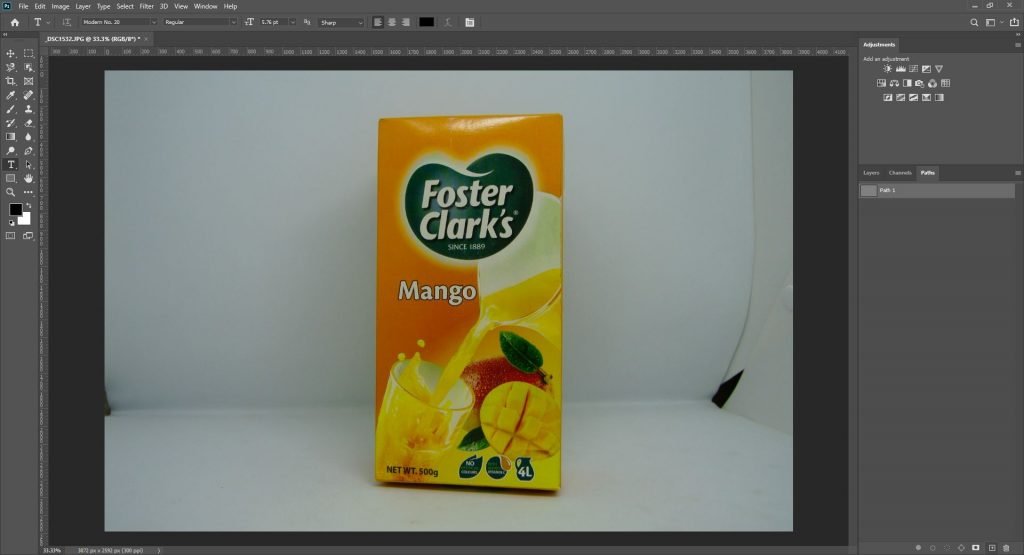
- Take your photo in Photoshop and unlock it by double-clicking on the lock icon.
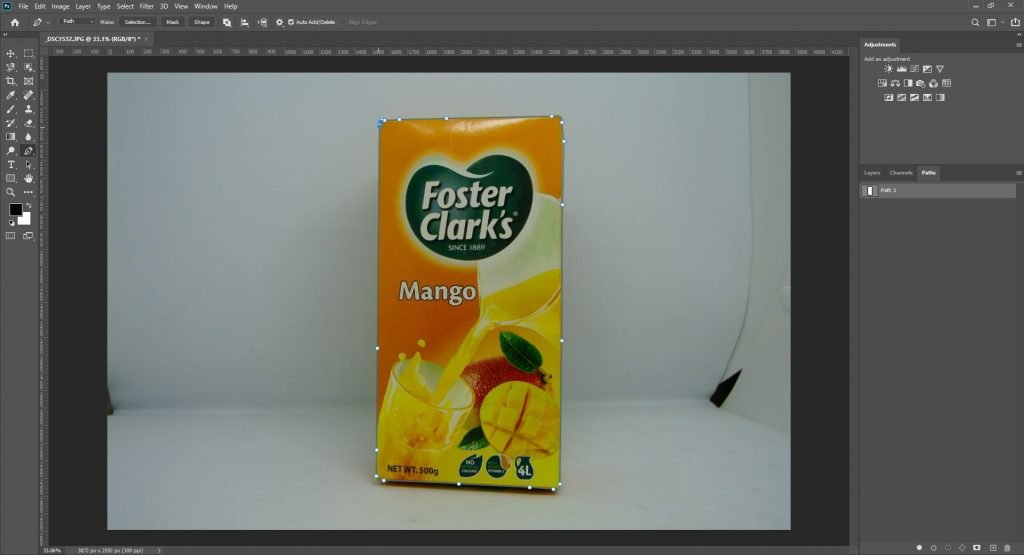
- Create a path to select the main object for removing the background. For creating a path, you have to zoom the image as you need. Take Pen tool and create a path.
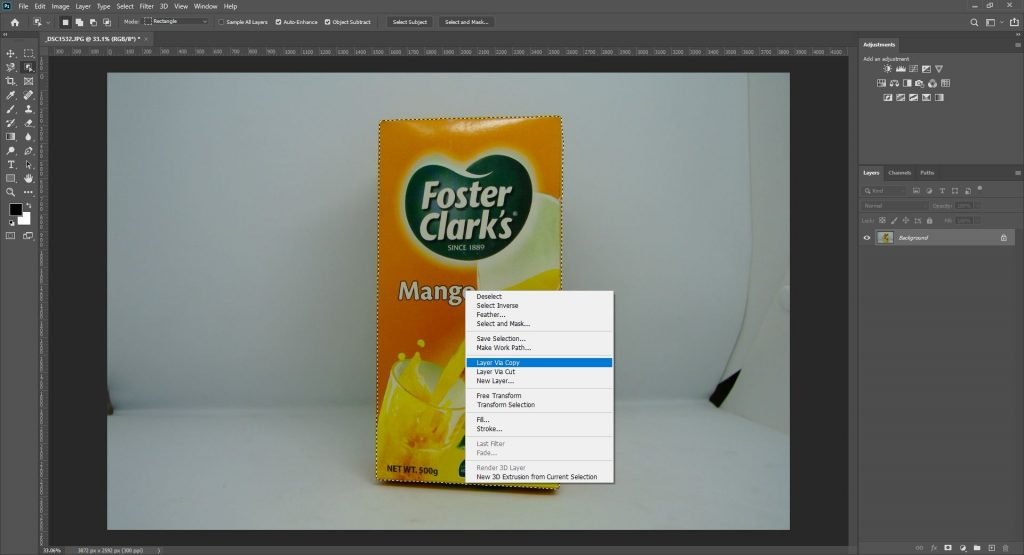
- Press “Ctrl+Enter” to make this path into a selection. You will then see a blinking dashed line around the image.
- Then select the main layer, Press “Ctrl+Shift+I” to inverse. After doing this, you can select the background. Now, hit Delete and there you get your image with a completely transparent background.
- However, if you want a color background, just take a new layer and provide any color to it by the Paint Bucket Tool. Place the new layer just below your image layer so you can have your chosen background color.
FAQ
What is the easiest way to remove a background in Photoshop?
The easiest way is using the Remove Background option in the Properties Panel. Photoshop automatically detects and removes the background with one click but you may need to refine the edges.
How do I remove a background without losing quality?
Use the Select Subject tool then go to Select and Mask to refine the edges. This is great for keeping details, especially around hair or soft edges.
Which tool is best for a complex background?
If the background has a lot of complex the Pen Tool or Channel Masking works best. The Pen Tool allows for precise selections while Channel Masking is great for high-contrast images.
Can I remove a background without affecting the subject?
Yes! Using Layer Masks instead of deleting pixels lets you remove the background non-destructively so you can always bring back details if need.
What is the Magic Wand Tool used for?
The Magic Wand Tool selects areas of similar color. Its good for removing backgrounds with solid colors but may need manual refinements for complex edges.
How do I make sure my cutout looks clean?
After removing the background use the Refine Edge Brush in Select and Mask to smooth edges and remove any leftover background traces.
What if my background has hair ?
Use the Select and Mask tool with the Refine Edge Brush to carefully select hair or fur. Adjust Feathering and Contrast for better blending.
Conclusion
Removing Background from an image using Photoshop is not the easiest things to master. It is very tricky work. Many people spend hours and hours working in Photoshop to remove the background. If you become able to master this work, then you will find a huge improvement in your ability and it will benefit a lot. Hope background remove tips for Photoshop Tools to Remove Background will help you improve your work.